Application as Service lets you easily connect to the remote PC via LAN or Internet and manage all the remote services as if they were local ones. Also, you can create a new system service on the remote computer or run application as service there.
Since Application as Service v.4.0 you do not need to install Application as Service on the remote computer to connect to it and manage services there. Application as Service should be installed on the local PC only.
To connect to the remote PC, do the following:
1. Click "Add computer" button on Toolbar:

2. "Connect to …" dialog will be invoked:
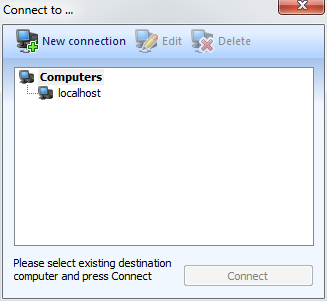
3. Click "New connection" button. The following window will be invoked:
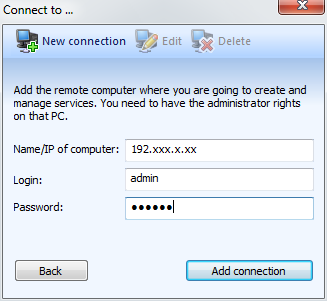
5. Type the remote computer’s name or IP.
Also, type the account name under which you want to login and the account password. Remember, that it should be an administrator account.
Click "Add connection" button.
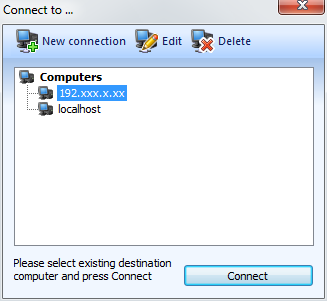
6. Now choose the remote PC from the list and click "Connect" button.
7. A new tab will appear, listing all the services of the remote computer:
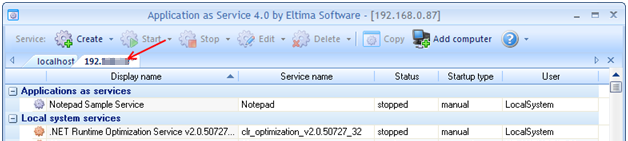
Once the connection is created, you can manage the remote services using buttons on Toolbar:

- Start on … – starts the service currently selected in Services list on the remote computer.
- Stop on … – stops the service currently selected in Services list on the remote computer.
- Edit on … – invokes "Edit service" dialog for the service currently selected in Services list on the remote computer.
- Delete on … – removes the service currently selected in Services list on the remote computer.
- Copy – copies the service currently selected in Services list to the remote computer.
Also, you can create a new system service on the remote computer or run application as service there. For instructions refer to ‘Create service on the remote PC‘ section.