For your utter convenience Folx suggests several ways to add a new download task:
WAY 1. Drag the URL (in case it is a download target) from the browser window and drop it into Downloads list.
WAY 2. Double-click the download URL in the text over a web-page. The new task will be added to Downloads list.
WAY 3. Copy the download URL and paste it into Downloads list.
WAY 4. Use Main menu options: Main menu –> File –> Add URL.
WAY 5. Click “Add” button at Download controls panel.
Customize download options in the invoked window:
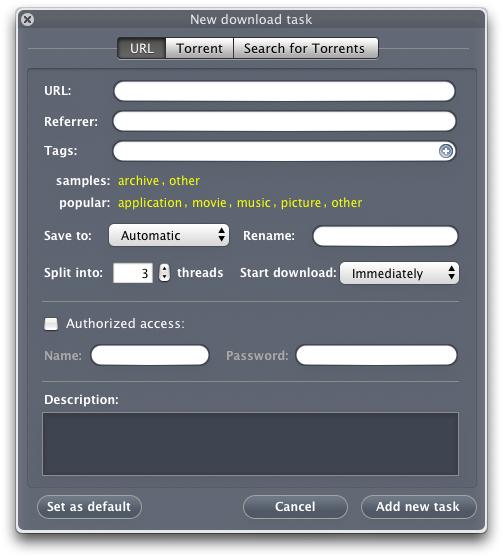
- URL: Paste the file’s URL here.
- Referrer is the URL of the web page a request is coming from. When you click on a link to go to another page, the browser sends the URL of the current Web page along with the request. Some sites, you download files from, request the referrer URL. Make sure you’ve pasted the proper link in the referrer field.
- Tags is an efficient way to organize your downloads. Paste a tag manually or choose from samples. Also, convenient menu for choosing tags is available – just click “+” button (since Folx version 2.0).
- Save to: Choose the destination path – the folder on your Mac to store the downloaded file in. Read here how to save downloads.
- Rename: In this field rename the file you want to download, if necessary.
- Split into: Choose the number of threads downloads will be split into. Multiple threads make download speed substantially higher.
- Start download: Choose one the modes: Manually (you will have to click “Start” button at Download controls panel), Immediately (the download will start right away), or Scheduled.
- Description – comments that you add are displayed in Downloads list in “Comment” column. You can also see your comments in Spotlight comments, added to a file or a folder after it is downloaded. Select a completed download task in Downloads list. Right-click it and choose “Reveal in Finder”. Then right-click the required file/folder, choose “Get Info” and view Spotlight comments, as well as tags assigned to this download.
WAY 6. Add a new task in Status window:
- either choose File –> Add URL;
- or drag and drop the URL into Status window.
Also, read how to start several downloads simultaneously:
/wiki/knowledge-base/folx/multiple-downloads.html