1. Spotlight
Folx proposes an outstanding feature – Spotlight integration, which lets you get the most from Folx tag system. Now you can use Spotlight engine to search for files you’ve downloaded without starting Folx.
 What is Spotlight?
Spotlight is a search feature of Mac OS.
How to search for downloaded files using Spotlight?
Thanks to Spotlight integration you don’t have to start Folx to look for the required file or to browse through folders on your hard drive. All you have to do is click Spotlight icon in the top-right of the menu bar. A text field will be invoked, where a search query can be entered (a tag, a file name, a link, or a comment). Search results will be immediately listed.
Wonder how to assign tags to your downloads? Refer to this section for instructions. Read as well how to add Spotlight comments to your downloads.
Folx proposes smart folder technology, which permits to save your downloads according to the tags you’ve assigned beforehand. One file will be stored only in one folder, but you can assign as many tags to the file as you wish. In other folders symlinks and hardlinks are created. If the folders are in the same volume, then hardlinks are created, if they are in different volumes – symlinks are created.
- If you’ve chosen “Automatic” option when creating a new download task, look for your downloaded files in folders by tags you assigned to this task (if you didn’t assign any tags your download will be saved with “other” tag).
- If you’ve chosen “Choose other“ option in “New Download Task” window, look for files in the folder you’ve specified to save downloads to. Moreover, files will be stored in tag folders, provided tags have been assigned to files beforehand.
- When you delete a tag from Tags list (right-click a tag there and choose “Delete Tag” option), your downloads are not deleted. They will be stored in other tag folders, provided several tags were assigned. If only one tag was assigned, your downloads will be saved with “other” tag.It also concerns situation when you decide to edit a download task and remove tags previously assigned to it (click “Edit” button at Download controls panel). Once editing is finished, downloads will be moved to other tag folders, provided you’ve assigned several tags to this task. If only one tag was assigned, your downloads will be stored in “other” tag folder.
3. Search window

Folx “Search” window filters your downloads according to their names, URLs and comments. Paste a text into Search window. Only the items, containing the text you’ve entered, will be left in Downloads list.
4. Smart groups
Smart groups make browsing through your download tasks much easier. Tasks in smart groups are organized according to certain criteria, for example, files of particular format. You can create a smart group so that all downloads, which match the rules set by you, can be located there.
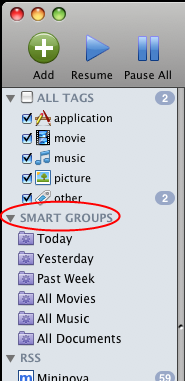
Read here the instructions on how to create smart groups.
5. Dock icon
If you right-click Folx icon in the Dock, you can see the list of your latest downloads:
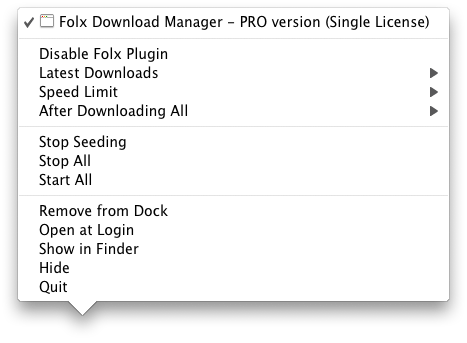
Double-click a download task in “Latest Downloads” list and it will be opened with an appropriate application (provided it is installed on your Mac; otherwise standard Mac’s “Choose Application” dialog will be invoked).
6. Open downloaded files directly from Folx interface
You can double-click a download task in Downloads list and it will be opened with an appropriate application right away. Remember, to make tasks open on double-click, the corresponding option in Preferences should be configured to “Open”.