Serial Port ActiveX Control - Installation tips

Installation into Microsoft Visual C#.Net/ Microsoft Visual VB.Net

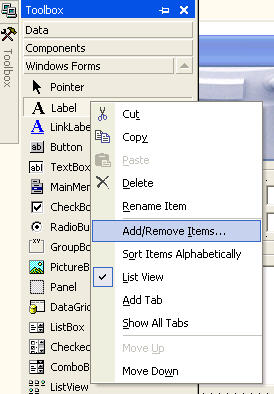
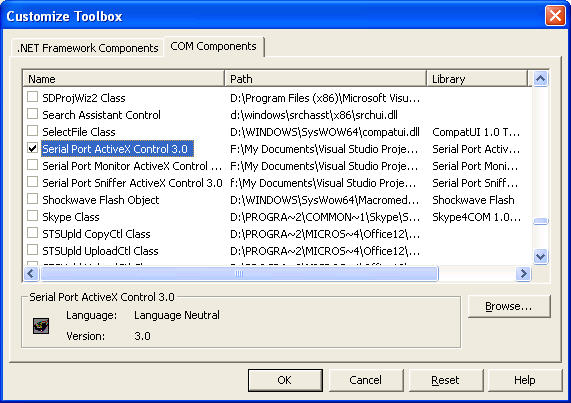
To install Serial Port ActiveX Control into Visual Studio, click "Tools->Add/remove Toolbox Items..." menu item, select "COM Components" tab in "Customize Toolbox" window, choose "Serial Port ActiveX Control" and press "OK" button.

Now you can drag and drop control to the form and use all methods and events provided by Serial Port ActiveX Control.

For more information see the example source code for MS Visual C++.Net and MS Visual C++.

Installation into Microsoft Visual C++.Net/ Visual C++ 6.0

To install Serial Port ActiveX Control into Visual Studio, right-click the form and select "Insert ActiveX Control" menu item, select "COM Components" tab in "Customize Toolbox" window, click and choose "Serial Port ActiveX Control" and press "OK" button.

Now you can drag and drop control to the form and use all methods and events provided by Serial Port ActiveX Control.

Installation into Microsoft Visual Basic 5-6

To install Serial Port ActiveX Control into Visual Basic, click Project->Components menu item and choose "Serial Port ActiveX Control".

Now you can drag and drop control to the form and use all methods and events provided by Serial Port ActiveX Control.

For more information see the example source code for MS Visual Basic 6.

Installation into Delphi and Builder

To install Serial Port ActiveX Control into your IDE, please, open project package, depending on your IDE, which is located in:

Installation folder\Consts\Builder\package\sport.bpk - for Builder
Installation folder\Consts\Delphi\package\sport.bpk - for Delphi

Then you should compile and install it to your IDE:

Builder


Delphi


Builder 2007, Delphi 2007