 Toolbar provides quick and convenient access to most commonly used tasks and commands and offers the following options:
- Edit
Opens “Edit connection” tab to customize currently selected connection settings (editing “Server connection”, “Client connection“, “UDP connection“).
- Delete
Removes currently selected configuration in “Connections Tree”.
Please, note that if this connection is opened then after clicking “Delete” button it will be closed. Deleting configuration will remove all virtual serial ports that were created by Serial to Ethernet Connector within this connection.
- Delete all
“Delete all” button closes all opened connections and removes configurations from your system.
- Create mirror
This menu item allows you to create inverted configuration parameters on remote host. You can consult Mirror connection section for additional information on how to create mirror connections on remote end.
- Advanced mode
Starting from version 4.0 Serial to Ethernet Connector has a completely new Advanced mode, great feature for those who want to customize advanced settings for new and already created connections.
There you can configure port settings, choose network protocol which will be used for data transmission, manage signal lines, enable proxy and traffic encryption and even password authorization for enhanced safety of your connection.
Please, consult Advanced mode section if you want to see how to configure all the available settings.
- Help
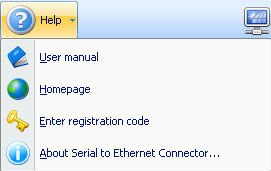
- User Manual
Opens user manual you are currently reading.
- Homepage
Serial to Ethernet Connector homepage (requires Internet connection).
- Enter registration code
Enter registration code to unlock the demo version. This code will be sent to you after you purchase a license.
- About
Get brief information about Serial to Ethernet Connector (version and build number, registration info, support e-mail address, etc.)