To share one real port among multiple applications, follow these instructions:
- Choose real port for sharing:
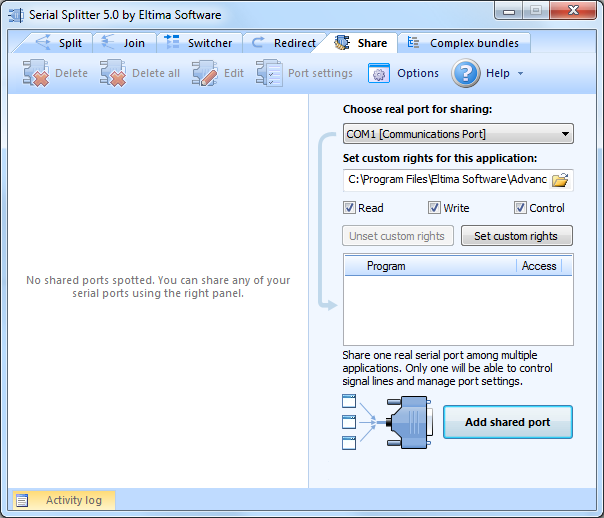
- In “Set custom rights for this application” textfield specify the full path to the application you want to set custom access rights for.
- To adjust access rights, toggle “Read”, “Write” and “Control” options. This will grant or restrict certain access parameters to shared serial port for the chosen application.
Note: only one application can manage serial port’s control lines. It is the only application which can change control line signals’ states (RTS\DCD\etc.) and, as the result, has full access to serial port device. In fact, control lines’ managing application can establish connection to shared serial port as many times as you like. For instance, if you have granted Windows HyperTerminal with managing rights, you can launch it several times and each instance of HyperTerminal can be connected to shared serial port without any problems. However, only the first instance will have access rights to manage the control lines. In most cases, allowing reading (“Read”) and writing (“Write”) are enough to access shared serial ports.
- Click “Set custom rights” button to modify access rights.
Note: When sharing real port between several applications, ports of both sides are main ones. Read more about main port here.
- Click “Add share” button. Your port bundle is automatically created in Bundle tree. If an error occurred while creating ports bundle, you can analyze information in Activity log.
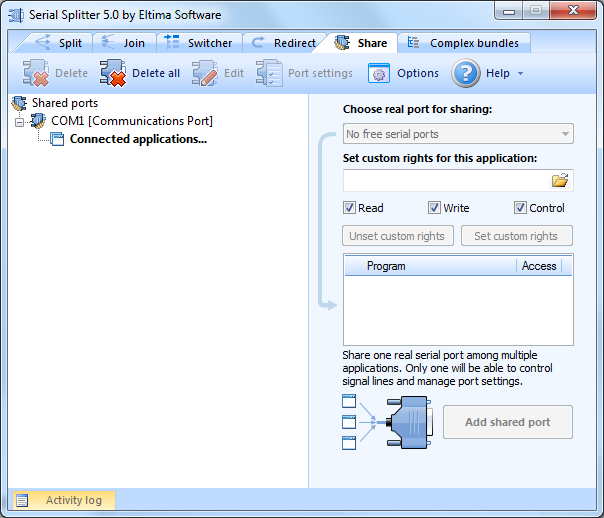
- Finally, launch application you have set access rights for and open shared serial port in order to have rights applied.
Note: you don’t need to restart the application already connected to shared serial port after you change the access rights for the application.