-
- Once SWF Live Preview is installed, new icon in system tray will appear. Right-click it and select the first menu option – “Create previews for directory”.
-
- New window will be invoked where you can select folder to scan for SWF files.
Note: if you have selected “Create and cache SWF files preview for this computer now” during installation process, you can skip this step – SWF file previews are already automatically created.
- New window will be invoked where you can select folder to scan for SWF files.
-
- SWF Live Preview allows you to view Adobe Flash files directly in Windows Explorer as any other image files. Make sure that you have selected the corresponding option in Windows Explorer: View –> Thumbnails or click
 toolbar button in Windows Explorer.
- SWF Live Preview allows you to view Adobe Flash files directly in Windows Explorer as any other image files. Make sure that you have selected the corresponding option in Windows Explorer: View –> Thumbnails or click
- SWF Live Preview provides convenient way to check SWF file info by displaying it in hint area (move mouse pointer over any SWF file and leave it there for a while):
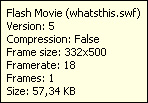
and in menu bar:

- You can get extended information about particular file by right-clicking it and selecting “Properties” option. New tab will appear where you can see detailed info such as file size, number of frames, shapes and sounds, frame rate, frame height and width, Flash version etc.:
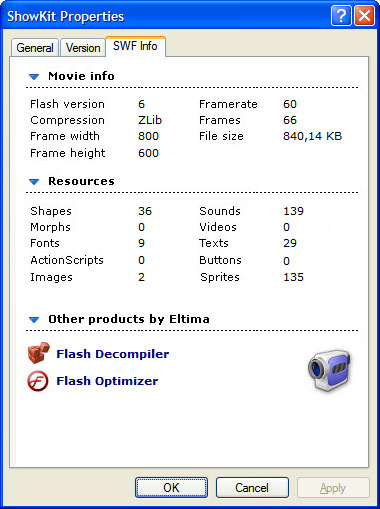
- Flash Decompiler and Flash Optimizer options let you decompile or optimize Adobe Flash files correspondingly, if you have these Eltima applications installed. Otherwise, you will be redirected to our web site where you can download them and get more information about our products.