If you are PRO version user, Folx offers a special feature for you – “Smart speed adjustment“.
“Smart speed adjustment” permits to control Folx download/upload speed if there is Internet traffic from a browser or another application. So you can surf the Internet with satisfactory speed while Folx is doing its job.
This option is available at “Speed” tab in Preferences (Main menu):
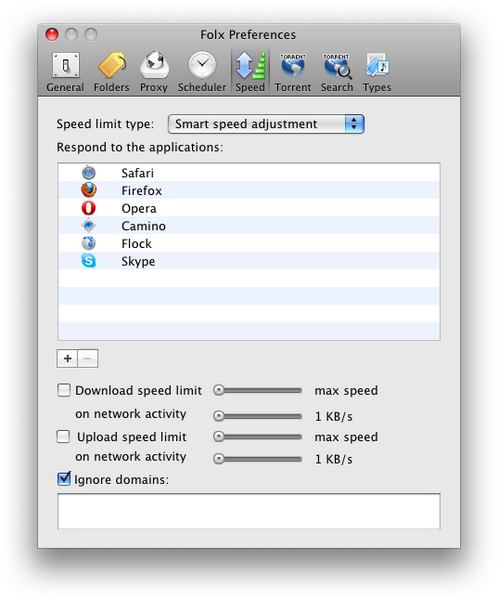
- Drag “Download speed limit” and “Upload speed limit” sliders to set speed value when there is no Internet traffic from a browser or another application.
- Drag “On network activity” sliders to set Folx download/upload speed value which will be applied during network activity.
- If you uncheck “Download speed limit” and “Upload speed limit” options, Folx will download/upload files without any speed limitations until network activity appears. When it happens, the speed value, which you’ve specified by dragging “On network activity” sliders, will be applied.
Additionally, you can customize the following options:
- Respond to the applications: Make a list of applications to which Folx will respond. Folx download/upload speed will automatically be lowered when these applications are active (if “Smart speed adjustment” option is enabled). Click “+” and “-” to manage the list.
- Ignore domains: Make a list of domains to be ignored by Folx. Folx will not automatically lower download/upload speed when these domains (for example, some local resources) are active.
“Smart speed adjustment” option is also available at Speed panel in Main window:

- Drag “Limit download speed” and “Limit upload speed” sliders to set speed value when there is no Internet traffic from a browser or another application.
- If you want to specify speed value when there is network activity, you can do it by dragging “On network activity” sliders in Preferences.
- If you disable “Download speed limit” and “Upload speed limit” options in Preferences, Folx will download/upload files without any speed limitations until network activity appears. Therefore these sliders at Speed panel will be inactive. When network activity appears, Folx will apply speed value you’ve specified by dragging “On network activity” sliders in Preferences.
Other ways to adjust speed:
1. Besides “Smart speed adjustment” option, you can choose one of the following speed modes:
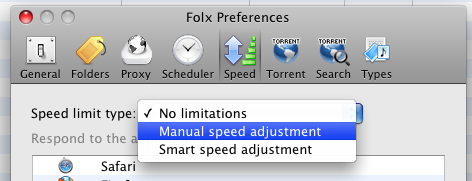
- No limitations – This option permits Folx to download/upload files without any speed limitations.
- Manual speed adjustment – This option permits to adjust download/upload speed manually. Drag “Download speed limit” and “Upload speed limit” sliders below to adjust speed. “On network activity” sliders are inactive for this option.
These speed modes are also available at Speed panel:
2. Right-click Folx icon in the Dock and choose “Speed Limit” option:
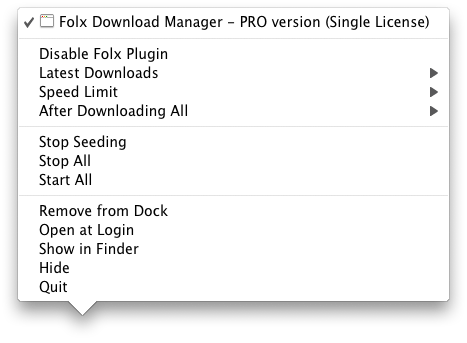
Choose one of the speed modes: No limitations, Smart speed adjustment or Manual speed adjustment.
Tips:
 View download speed
To view download speed (either of the whole file or separately of each thread), refer to Info bar. Find out here how to show/hide Info bar.
View download progress
You can find out the size of the downloaded content in Progress bar.
Read how to show/hide Progress bar. Also, read here how to extract download log from Folx.
View file info
If you click the file in Downloads list, Info bar will appear, where you can see: the file name, the total number of threads, the number of current threads and errors if there are any. In Info bar you can look through the info on each thread separately. Find out here how to show/hide Info bar.