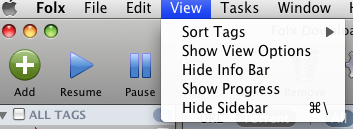
Downloads list is the list of download tasks. You can customize the list’s view up to your needs for more convenient usage of Folx:
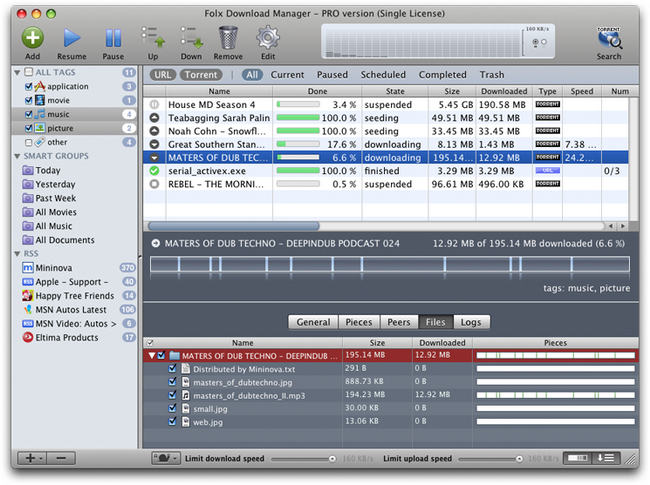
- Manage tasks display
At Filters panel you can choose what download tasks to display: All, Current, Paused, Scheduled, Completed or Trash.
- Label tasks
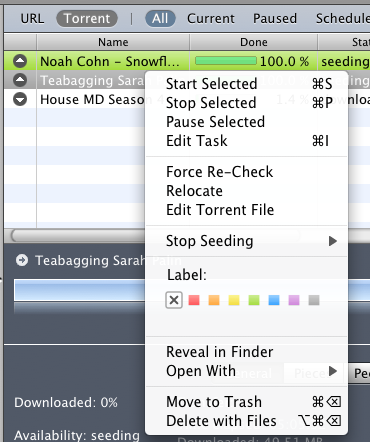
You can label your tasks in Downloads list. That is, highlight them with definite color. That will help you identify a special task easily in the list if there are multiple tasks there.
To label your task, right-click it, choose “Label” option from the context menu and set the desired color:
You can label not only tasks in Downloads list, but also tags in Folx sidebar. Read how to do it.
- Prioritize tasks
Refer to “Prioritize Tasks” section to know how to prioritize downloads, as well as torrents with multiple content.
- Manage columns
Downloads list consists of the following columns:
- “Status” – the task’s status (done, in progress, paused, error, etc.)
- “Name” – the file name
- “Done” – the task progress in percent
- “State” – the task’s state (suspended, downloading, seeding, etc.)
- “Size” – the file size. If it is torrent download, “Size” column displays the total size of the torrent content (even if only certain files were selected for downloading).
- “Selected size” – the size of the torrent content you have selected for downloading (if it is torrent with multiple content). The size of skipped files is not taken into account.
- “Downloaded” – the size of already downloaded data in bytes
- “Type” – the file type
- “Speed” – the download speed
- “Num” – the number of already created threads and the possible number of threads for this download task
- “Retry” – the number of tries to download the file
- “Elapsed” – active time of the download
- “Left” – the time left before the download is completed
- “URL” – uniform resource locator, an address that identifies a particular file on the Internet
- “Percent” – the size of already downloaded data in percent
- “Comment” – comments that you added while creating a new download task
- “Created” – date and time the download task was created
- “Completed” – date and time of download task completion
- “Seeds” – the number of seeders (peers who have already downloaded torrent and are uploading it)
- “Upload speed” – speed of torrent uploading
- “Peers” – the number of peers (participants in the swarm)
- “Available” – the number of distributed copies of the torrent available to your torrent client. Note, that one torrent copy may be spread out among many peers. Once the download is completed and Folx starts seeding the content, the number of distributed copies of this torrent is not shown, and “seeding” status appears.
- “Uploaded” – the amount of uploaded data
- “Ratio” – a user’s share ratio for any torrent, determined by dividing the amount of data that the user has uploaded by the amount of data the user has downloaded
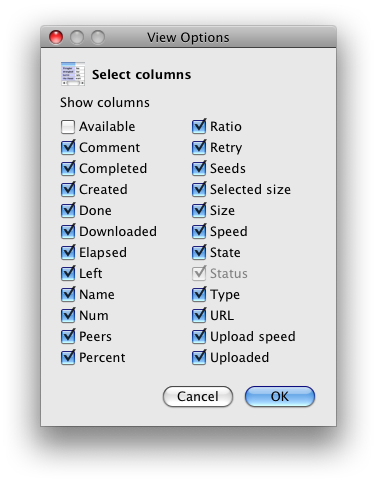
In “View Options” window (Main menu –> View –> Show View Options) you can decide what columns to make visible in Downloads list. The same option is available from Status window.
- Show/hide Progress bar
Progress bar displays the file name, its total size and the size of the downloaded content. Click
 button to show/hide Progress bar.
 - Show/hide Info bar
If you click the file in Downloads list, there will appear Info bar, where you can see: the file name, the total number of threads, the number of current threads and errors if there are any. In Info bar you can choose to look through the information on each thread separately. Read this section to find out how to extract download log from Folx.
Use
 button to show/hide Info bar.
Progress and Info bars can be also shown/hidden via Main menu: