“Preferences” dialog can be invoked from Main Menu –> Flash Decompiler Trillix. It consists of several tabs and provides the following options:
1. AS Viewer
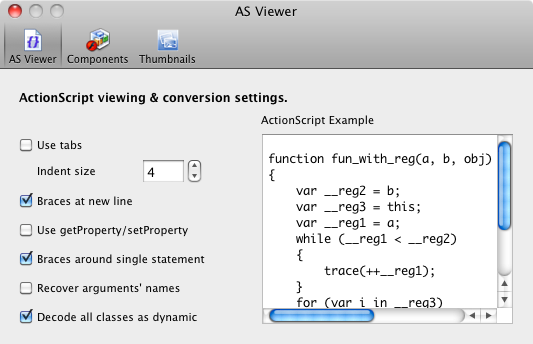
In this dialog you can customize settings for ActionScript preview. Choose how to view ActionScript:
1. Use tabs
This checkbox lets you decide whether to use tabulation character or space for indentation in ActionScript.
2. Indent size
Define size for indents.
3. Braces at new line
This option defines where to place curly brackets on new line (the so-called new C style) or to use old coding style (Kernigan & Ritchie).
4. Use getProperty/setProperty
Use old-style syntax to object properties (getProperty and setProperty built-in functions).
5. Braces around single statement
This option defines whether the single statements should be encapsulated into braces.
6. Recover arguments’ names
“Recover arguments’ names” option is useful when information about file variables’ names is not available (it is caused by the fact that starting from Adobe Flash Player 6.0 registers were added to ActionScript virtual machine structure in order to improve performance speed). This option enables Flash Decompiler to use heuristic algorithm to restore binding of variables to their values and is applicable to ActionScript 1.0 and 2.0 only.
7. Decode all classes as dynamic
This checkbox enables all AS 2.0 classes decoding as dynamic. Dynamic class makes possible to add properties and methods at runtime, while such action for non-dynamic class will lead to compilation error. The problem is that in a SWF file all classes are considered dynamic.
In the window to the right you’ll see the example of ActionScript and the changes applied.
2. Components
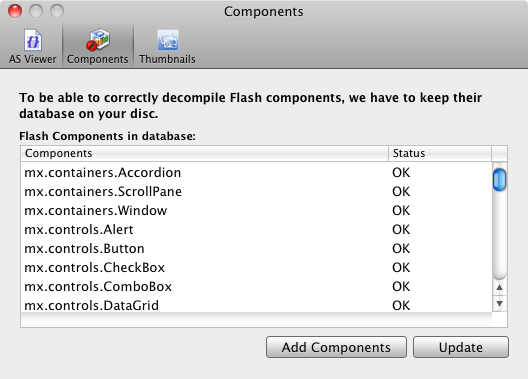
This dialog enlists the Flash components that Flash Decompiler is aware of, and which will be converted correctly. “Update” button will be active and Flash components will be available for viewing if you have Adobe Flash version not lesser than 7 installed on your PC.
If you use third-party components and have them on your hard-drive, add them using “Add Components” button. Thus, Flash Decompiler will see them, and they, along with standard components, will be converted correctly.
3. Thumbnails
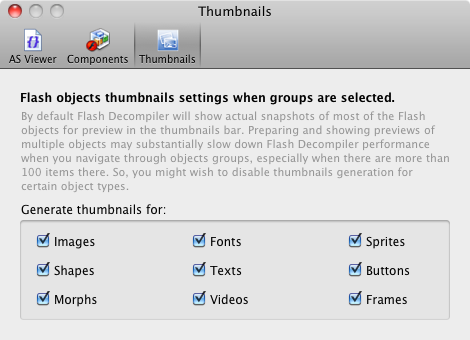
Disable thumbnails generation in Thumbnails bar for certain object types in order not to slow down Flash Decompiler performance, especially if there are many items in object groups.