Status window is an efficient tool which helps you achieve a far greater potential by giving instant access to Folx options. Folx Status window shows up in all Spaces (virtual desktops). It’s very convenient to switch between Spaces and still be aware of download progress and have access to Folx settings.
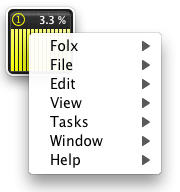
In Status window the following info is displayed:
- Download progress in percent
- Download speed
You may use Status window to:
 Manage tasks:
- Add a new task: either drag and drop the URL into Status window, or choose File –> Add URL.
- Add a tag: choose File –> New Tag.
- Add a new torrent task: choose File –> Add Torrent.
- Force torrents re-check: choose Tasks –> Force Re-Check.
- Edit a download task: choose File –> Edit Task.
- Relocate your downloads: choose Tasks –> Relocate.
- Delete a download task: choose File –> Delete.
- Start a download process: choose Tasks –> Start Selected.
- Stop a download process: choose Tasks –> Stop Selected.
Manage Downloads list:
- Prioritize tasks – This option lets you move the selected download task up/down in Downloads list (Tasks –> Priority Up/Priority Down).
- Show/hide progress – This option hides/shows Progress bar, where you may find out the size of the downloaded content, as well as the file name and its total size (File –> Show/Hide Progress).
- Show/hide filters – This option hides/shows Filters panel which permits to choose what download tasks to display: All, Current, New, Scheduled, Complete or Trash (File –> Show/Hide Filters).
- Show view options – This option invokes “View Options” window (View –> Show View Options), where you can decide what columns to make visible in Downloads list.
Moreover, Status window provides access to Preferences, where you can customize Proxy and Torrents settings, adjust speed, schedule your tasks, and much more (Folx –> Preferences).
Registration (Folx –> Enter Registration Key) is accessible from Status window as well.
Since Folx 2.0, Activation can be accessed from Status window (Folx –> “Activate Folx PRO“).