With virtual serial port technology you can create a virtual port, open the port with your application and read the data from the server directly, leaving the real port unoccupied.
Moreover, virtual serial port connection is faster and more reliable than real serial port connection. In the range of client-server application, you can create up to 255 simultaneous connections to the remote server.
To create a connection, follow these instructions:
1. Switch to "Create connection" tab.
2. Specify connection name to identify this configuration. Default name is based on local serial port number, which participates in connection, and connection type in brackets.
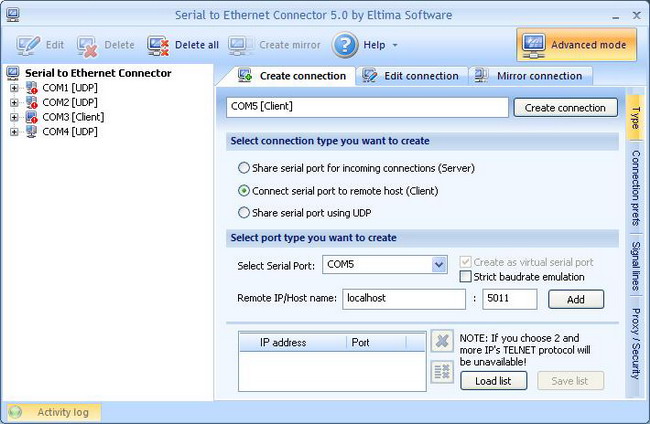
4. In "Select Serial Port" field choose local serial port which will participate in connection: either add it manually, or select one from the drop-down list.
5. Tick "Create as virtual serial port" checkbox if you would like to use virtual serial ports instead of real ones.
6. Tick "Strict baudrate emulation" checkbox if you want to enable baudrate emulation.
You can find more details about our virtual serial port and baudrate emulation technologies here.
7. Specify the server’s IP address (or network name) and local TCP port number to connect to. Make sure that the port number matches the one at the remote host and isn’t blocked by firewall.
Note, that if you choose 2 and more IP’s, TELNET protocol will be unavailable.
8. Finally, click "Create connection" button in Main window. Once connection was created successfully, you will see your connection in Connections tree.
9. Open local serial port. You may use Windows HyperTerminal utility for this purpose. This step is necessary only if you want to verify the successful creation of connection.
10. Create "server" connection at the remote end and make sure that remote host name and port number match the ones you set in client’s configuration.
11. Now you are ready to start communication process with default settings. If you would like to edit your connection settings, please, consult Editing "client" connection section.
Alternatively, you can use Mirror connection option, to automatically configure the remote end.
Setting up connection settings, Signal lines, Proxy and security settings sections will help you change advanced settings after activating Advanced mode.