Ribbon bar consists of several tabs. Let’s review all of them:
- “Manage” tab allows you to manage Flash files, preview them, see their properties, add/remove them from “My tasks” list, etc.:

“Open Flash file” button – previews a file and adds it to “My tasks” list for further processing.
“Add folder root” option – adds to “My tasks” list only the files from a folder’s root.
“Add folder recursively” option – adds to “My tasks” list all the files in the current directory recursively, including subfolders.
“Preview only” button – opens files in Main player window for preview.
“Add to tasks” button – adds to “My tasks” list a currently selected file for management, conversion and extraction.
“Remove current task” button – removes a current task from “My tasks” list.
“Clear My tasks” button – removes all tasks from “My tasks” list.
“Extract objects” button – extracts all currently selected SWF resources.
“Convert to source” button – converts currently highlighted task from “My tasks” list.
“Show Dump View“ option – lets you view the content of a SWF file (selected in My Tasks list) in hex dump mode – the lowest possible level of Flash file viewing.
- “Extract” tab
Flash Decompiler lets you export every single type of objects which the selected SWF/EXE files consist of into a separate file for further analysis. For instance, you can export sound objects from SWF file into .MP3 or .WAV formats, video to .AVI and so on.
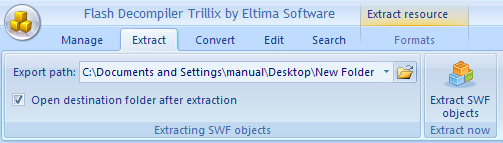
“Export path” – here you can indicate the destination folder to which all objects, selected in SWF/EXE files in “My tasks” list, will be extracted.
“Open destination folder after extraction” checkbox will enable opening the destination folder, where all extracted objects are located, automatically after extraction process.
“Extract SWF objects” button – starts the extraction of all currently selected SWF resources in “My tasks” list. Export path will be used as the place on your hard drive to store the objects in.
Moreover, this tab allows you to select the desired formats for objects, which will be extracted. Just click “Formats” sub-tab and you will see the following:
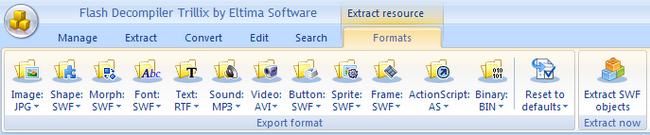
Flash Decompiler allows you to extract SWF objects into various file formats.
All the objects (except for ActionScript) can be extracted separately into flash animation (SWF) and flash sources (FLA) file formats additionally to other formats.
Shapes, Morphs, Fonts, Buttons, Sprites and Frames can be extracted only into SWF or FLA.
Here is the list of SWF objects and possible formats they can be extracted to:
- Images can be extracted into JPEG, PNG or BMP file formats
- Sounds – into WAV or MP3
- Video – into AVI, MPG and FLV
- Texts – into TXT, HTML, RTF
- ActionScript – into AS, TXT (P-code or Hex dump, or both)
- Binary – into DAT
Besides, you can reset all the extraction formats to default ones (“Reset to defaults” button).
Read in detail about the extraction process in How to extract resources from SWF section.
Note: Since Flash Decompiler v.5.1, conversion options are applied to extraction of SWF objects into FLA. It is useful when you need to set some additional FLA options, like FLA format version. Conversion options are described in Convert tab section. - “Convert” tab
Flash Decompiler Trillix features unique option to convert your SWF files back into FLA. FLA format is Adobe Flash file format, which contains the original source code for SWF Flash movie, which, unlike the SWF format could be edited and modified in a native Flash environment (Adobe Flash). As the result you gain the full control of your SWF files.
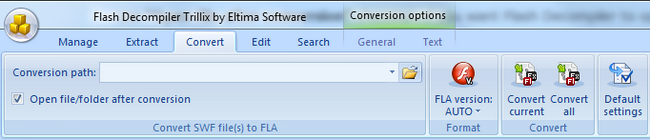
Here you can indicate the destination folder (“Conversion path” field), where the resulting FLA file will be stored into.
Use “Open file/folder after conversion” checkbox if you want Flash Decompiler to open the resulting FLA in Adobe Flash immediately after conversion process, or the folder with Flash project.
“FLA version” – selects the version of FLA format to be created.
- Autodetect. If you choose autodetection, then the minimal format, which supports all Flash file’s features, will be used. E.g., if a file contains AS 2.0, then at least MX 2004 will be chosen.
- Macromedia Flash MX (v6)
- Macromedia Flash MX 2004 (v7)
- Macromedia Flash 8 (v8)
- Adobe Flash CS3 (v9)
- Adobe Flash CS4 (v10)
- Adobe Flash CS5 (v11)
“Convert current” button starts the conversion of a currently highlighted file from “My tasks” list.
“Convert all” button starts the conversion to FLA of all available tasks.
“Default settings” button resets to default conversion settings if you changed them.
You can change conversion settings by clicking the corresponding sub-tabs: General and Text. Let’s review both of them:
- General
<

- “Motion tweens” sub-tab
“Detect motion tweens” checkbox enables/disables motion tweening conversion. If this option is disabled, all of the settings below will be ignored. Motion tweening is a process of generating intermediate frames between two different images, producing transposition effect when the first image evolves smoothly into the second one.
“Movement smoothness” slider defines the algorithm’s sensitivity and represents a deviation from imaginable motion trajectory in percents. It could highly affect the resulting movie quality: if you set smoothness value small enough, the motion tween may not be recognized at all, and, on the contrary, if smoothness is too high there may be flaws in resulting FLA file, where some objects will not follow the path correctly and produce quirky movements. This option is available if “Detect motion tweens” is enabled.
“Length factor” slider defines the deviation from calculated path with the distance factor.
- “ActionScript” sub-tab
“Decode all classes as dynamic” – This checkbox enables all AS 2.0 classes decoding as dynamic. Dynamic class makes possible to add properties and methods at runtime, while such action for non-dynamic class will lead to compilation error. The problem is that in a SWF file all classes are considered dynamic.
“Recover arguments’ names” option is useful in case when information about file variables’ names is not available (it is caused by the fact that starting from Adobe Flash Player 6.0 registers were added to ActionScript virtual machine structure in order to improve performance speed). This option enables Flash Decompiler to use heuristic algorithm to restore binding of variables to their values and is applicable to ActionScript 1.0 and 2.0 only.
“Use getProperty/setProperty” – uses old-style syntax to object’s properties (getProperty and setProperty built-in functions).
You can also change ActionScript setting here.
- “Objects”
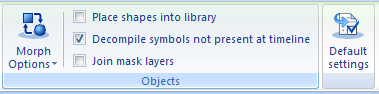
“Place shapes into library” checkbox enables/disables grouping of all shapes into a separate folder instead of placing into the corresponding frame. Generally, it may be more convenient, especially, when a shape appears only 1 time.
“Decompile symbols not present at timeline” – defines whether the objects that are not placed on timeline should be decompiled. This option is useful if your SWF file contains ActionScript.
“Join mask layers” – checkbox defines whether the similar mask layers should be joined into a single one. If option is disabled, each layer will have a separate mask.
- “Morph Options” button
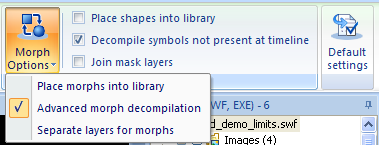
“Place morphs into library” – this checkbox enables/disables placement of all morphs into a separate FLA library and timeline after decompilation. Being placed into the FLA library, the morph is converted into a movie clip, which contains the morph of the correct time length. If this option is not enabled, morph will be placed into the corresponding frame without adding it into the library.
“Advanced morph decompilation” – affects the morph conversion algorithm. Once disabled, Flash Decompiler will not take into a consideration that the resulting morph is 1 frame shorter than the original one. As the result, conversion will be quicker, however the quality will decrease significantly for the small morph. If you enable this option, then Flash Decompiler will fix the problem with length by placing morphs into separate layers. The exact mechanism for layer splitting is placed in “Separate layers for morphs” option.
“Separate layers for morphs” checkbox is available if you enable “Advanced morph decompilation”. Basically, it tries to resolve the morphs length problem by placing each morph into separate layers. If you disable this options then the resulting morph will be 1 frame longer and the frame that comes behind the last morph’s one is placed on separate layer. As the result, each morph is layered and FLA file may grow in size. By enabling this option, the resulting morph will be 1 frame longer as well, however second layer will only contain the data that prevents the morph from being prolonged. If you have problems with morphs in the resulting FLA file, please, try to enable/disable this option first.
- “Default settings” button resets to default conversion settings.
- Text options:
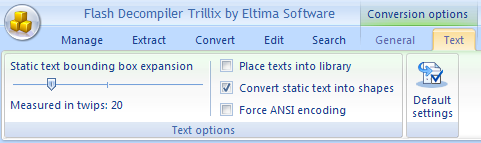
“Static text bounding box expansion” – quite often when converting static text you may encounter the problem that resulting text is few pixels bigger than the original one. Adobe Flash doesn’t insert “New Line” character automatically. As the result, text doesn’t fit into the bounds and is slightly slid. “Static text bounding box expansion” slider simply extends bound box size on the number of twips you specify by this setting.
“Place texts into library” checkbox allows converting texts as Symbol instead of placing them on Timeline.
“Convert static text into shapes” checkbox defines whether the static text in SWF file should be converted into shape. If you disable it then all static text will be directly converted into a FLA file as simple text. The advantage of this method is that you may easily edit this text later on. However, the possible problem which may arise with this method is if there is no character map for those characters. In this case you may see question marks instead of your text. As an alternative, you may convert static text into a shape which guarantees you that all texts will be present in FLA file in readable format but they will not be easy to edit.
“Force ANSI encoding” – if option is enabled Flash Decompiler attempts to use heuristic method to fix a bug in Adobe Flash MX (6.0 and above versions). Adobe claims that it uses text in Unicode-16 (2 bytes for a character) format, meantime Cyrillic text, for instance is represented as ISO 8859 code (8-bit per character), and, therefore, there could be some problems with text representation in resulting FLA file. This bug is applicable for Central European, East European and several other encodings.
“Default settings” button resets to default conversion settings.
For more hints on SWF to FLA conversion, please, refer to this section.
- “Motion tweens” sub-tab
- “Edit” tab lets you change the way Flash files are created and edit them on the go without the need to recompile into FLA.
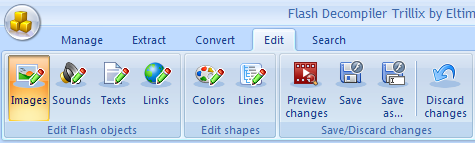
“Edit” tab of Flash Decompiler lets you easily edit the following elements of any Flash movie:
- “Search” tab lets you search for the necessary information in ActionScript used in SWF/EXE files. Moreover you can change ActionScript view to different representations for your convenience.
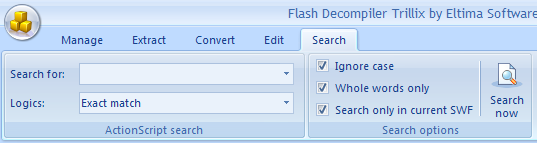
In “Search for” text field you can write text you want to find in ActionScript.
“Logics” menu allows you to select whether exact match of text will be found, all words or any word of text, which you specified in “Search for” text field.
Besides you can configure the following options:
“Ignore case” checkbox – ignores text register, which you specified in “Search for” text field.
“Whole words only” checkbox – Flash Decompiler will search whole words only for the text which you specified in “Search for” text field.
Enable “Search only in current SWF” checkbox if you want Flash Decompiler to search in ActionScript of one selected SWF file in “My tasks” list. If you disable this option, Flash Decompiler searches text in ActionScript of all SWF files, which are located in “My tasks” list.
“Search now” button – starts searching in ActionScript within SWF/EXE files.
Please, refer to “How to search” section if you want to see the exact examples of searching in ActionScript.